GTA 6 Hub / Guides
GuidesGTA 6 Best HDR Settings: How to Calibrate HDR on PS5 and Xbox
GTA 6 has no graphics modes and no HDR sliders of its own. The best picture comes from your TV and your console's HDR calibration, done in the right order.
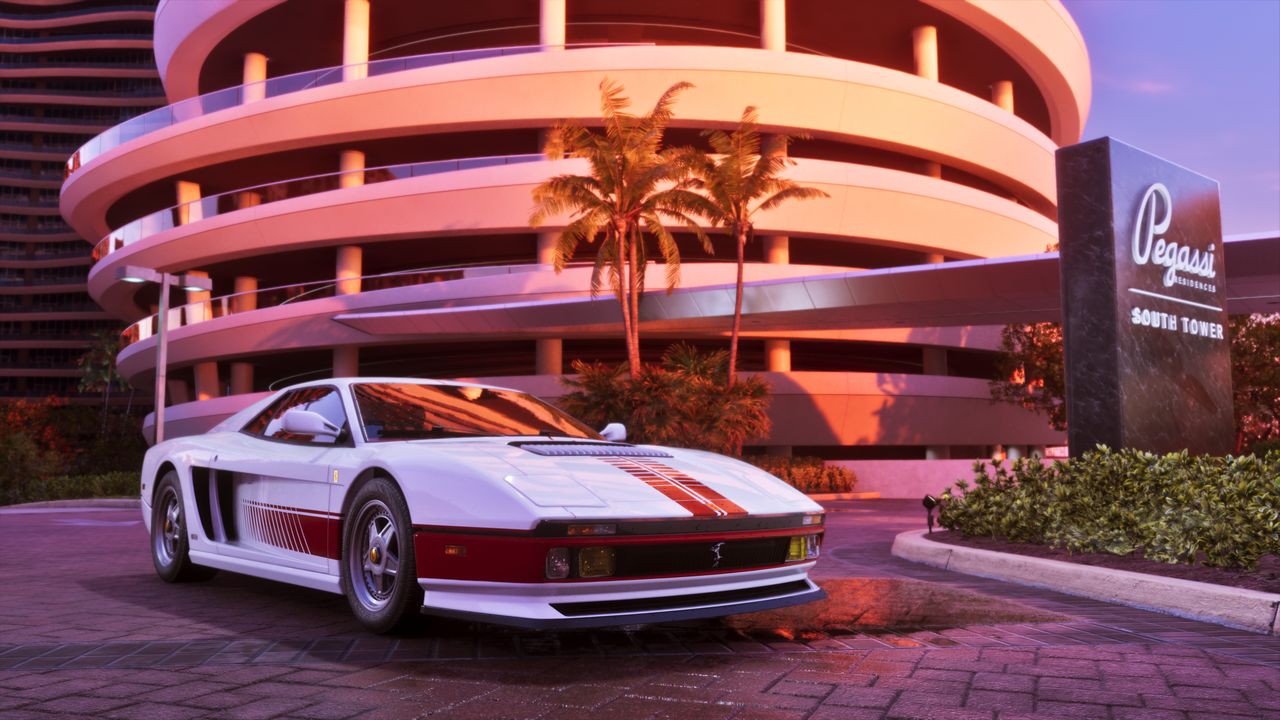
There is no single set of numbers that gives everyone the best HDR in GTA 6, because the game has no HDR sliders of its own. What Rockstar and Digital Foundry have described is a game that targets 30 frames per second on every console, renders at 1440p internally on PS5, PS5 Pro and Xbox Series X, upscaled to a 4K output, and uses HDR highlights that Digital Foundry measured beyond 1,500 nits. The calibration that matters happens on your TV and your console, not in the game's menus.
The honest headline first: no graphics modes, no HDR menu
GTA 6 runs at 30 fps on PS5, PS5 Pro, Xbox Series X and Xbox Series S. Rockstar confirmed the 30 fps target on November 10, and Digital Foundry's analysis of the shipped game found no 40 fps or 60 fps option on any console. There is no performance mode, no quality mode and no resolution toggle. The game also has no HDR sliders that Rockstar or Digital Foundry has described, so the console's own HDR calibration is the calibration the game uses. Launch-day menu walkthroughs report a first-boot HDR calibration screen in the game itself, where you adjust brightness and contrast against test images, but the lasting setup is the one below.
Step 1: your TV first
The biggest upgrade costs nothing and lives in your television. Most TVs ship with picture processing that actively fights a game like this.
- Turn on Game Mode. It kills the heavy processing that adds input lag, and usually disables motion interpolation in the same move.
- Turn off motion smoothing. If your TV keeps it as a separate toggle, under names like TruMotion, Motionflow or Auto Motion Plus, switch it off yourself.
- Turn on HGiG if your TV has it. HGiG tone mapping tells the TV to respect the console's calibration instead of applying its own, so it stops reinterpreting the image a second time and clipping your highlights. If your TV has no HGiG, leave tone mapping on its most neutral setting.
- Turn off noise reduction and extra sharpness. Sharpness at 0 is the neutral point on most TVs.
Step 2: calibrate HDR on the console
Do this after setting up the TV, in the exact picture mode you will play in, and in the lighting you will actually play in. The calibration depends on both.
| Console | Where to calibrate |
|---|---|
| PS5 | Settings, Screen and Video, Video Output, Adjust HDR. Three screens: move each slider until the symbol is barely visible. |
| Xbox Series X|S | Settings, General, TV and display options, Calibrate HDR for games. Follow the on-screen steps for peak brightness and black level. |
On PS5, also set HDR to On When Supported rather than Always On, Resolution to Automatic, and VRR to Automatic. VRR will not add frames to a 30 fps game, but it smooths the presentation when the frame rate dips under stress, and Digital Foundry's testing says dips are exactly when you will feel them: the base PS5 can drop to around 23 fps in heavy explosions, and the Pro to around 24 fps when several cars blow up at once.
Step 3: the game's first-boot calibration
Launch-day menu walkthroughs report that GTA 6 opens with a first-boot setup screen that includes HDR calibration: press R1 or RB to cycle through the test images and follow the on-screen instructions to set brightness and contrast for your display. The slider starts at 15 in the walkthroughs, but that number means nothing across different TVs: the correct result is the one the test images tell you, a visible near-black level without grey blacks and bright highlights that keep their detail. One settings guide's quick-picks table lists a 600/50/50 default; treat that as one guide's starting point, not a Rockstar recommendation.
What not to chase
Do not hunt for a universal HDR number online. There is no defensible universal value for the console's HDR sliders or any in-game brightness setting before Rockstar publishes a final menu, because the right value depends on your TV's peak brightness. A TV that can show real HDR highlights is where the difference is: Digital Foundry's 1,500-nit finding is exactly the bright sun, neon and night-sky contrast the trailers promised, and it only shows on a display that can reach it. An HDMI 2.0 port carries 4K HDR at 30 fps, so you do not need HDMI 2.1 for this game, though a certified HDMI 2.1 cable on a 2.1 input does no harm.
See also: the best settings guide for the full first-boot setup, and the PS5 vs Xbox comparison for what each console actually renders.
- The Daily Checkpoint, GTA 6 Settings Guide: Make Leonida Look Like Rockstar Intended
- iGeeksBlog, Best GTA 6 settings to change before playing
- Home Theater Hub, GTA 6 TV Requirements and the Best TV for GTA 6
- Guias GTA 6, Best settings for GTA 6: TV, HDR and console (PS5 and Xbox)
Figures were checked on the dates shown. Review scores and store listings can move after publication.
More from GTA 6 Hub
 Launch Guide
GTA 6 Release Date, Unlock Time and Platforms: Everything Confirmed for Launch Day
Grand Theft Auto VI is out now on PlayStation 5 and Xbox Series X|S. Here is when it unlocks, where to get it, and what Rockstar has confirmed.
 Price Guide
GTA 6 Price: Standard vs Ultimate Edition, and Which One to Buy
Standard is $79.99, Ultimate is $99.99, and the $20 gap buys bonus content only. The same game, the same map, the same story in both.
 Reviews
GTA 6 Reviews: 99 on Metacritic, Tying the Highest Score Ever
Critics handed Rockstar a near-perfect launch: 99 on Metacritic, 98 to 99 on OpenCritic, and not a single mixed or negative review counted.